Table of Contents
Integrating large-format televisions into home office setups remains a popular trend for enthusiasts, but consumers often encounter unexpected configuration hurdles when transitioning from traditional displays to modern OLED panels. Whether you are troubleshooting missing picture settings on a high-end Samsung or attempting to bridge the performance gap between a budget-friendly TCL and a decade-old legacy display, maximizing display potential requires more than just plug-and-play operation.
Key Points
- OLED Monitors: 42-inch OLED TVs like the LG C4 provide superior gaming experiences but require careful management to avoid burn-in from static PC interfaces.
- Samsung Settings: Picture modes and intelligent settings are often greyed out on the home screen because they require active content, such as a streaming app or external input, to be enabled.
- Optimizing Budget Displays: To see a noticeable upgrade from older hardware, users must disable Energy Saving Mode and Intelligent Mode, which often throttle brightness and contrast performance.
- Input Management: When using smart TVs like the Sony Bravia with cable or satellite boxes, configuring the "power-on behavior" ensures a seamless return to live broadcasts rather than the device's home menu.
The Reality of OLED for Desktop Productivity
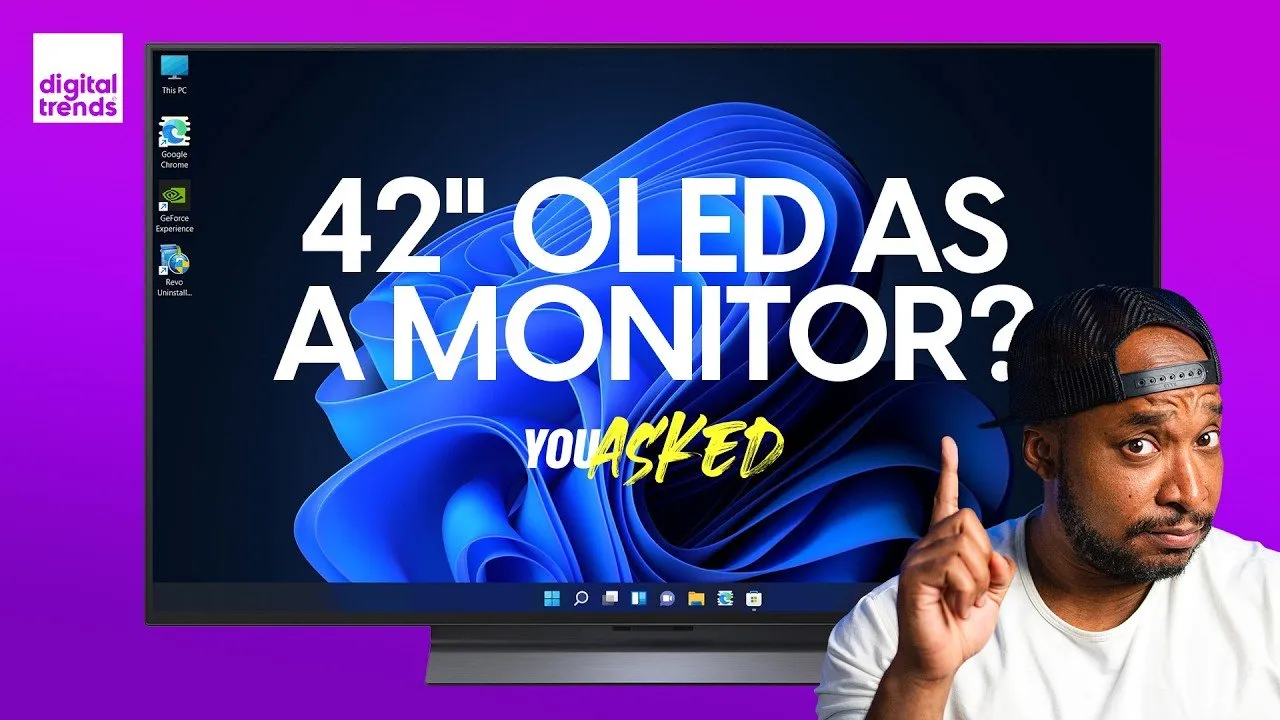
Using a 42-inch OLED TV as a primary PC monitor offers significant advantages for immersive gaming and media consumption, primarily due to the high refresh rates—such as the 144Hz found on the LG C4—and the inherent depth of contrast that OLED technology provides. The inclusion of a central pedestal stand on many modern units also simplifies placement on narrower desks, eliminating the need for wide-set feet.
However, users must remain mindful of the risks associated with static screen elements. Because desktop operating systems rely on fixed taskbars and icons, leaving the display on for extended, uninterrupted periods can lead to image retention or permanent burn-in. Experts suggest that while the visual "wow factor" is substantial, users should treat these televisions as dedicated high-end displays rather than utility monitors, exercising caution with long-duration static usage.
Troubleshooting Menu Limitations
A common frustration for new TV owners is finding essential settings menus inaccessible or greyed out. This is rarely a hardware fault; it is typically a result of being trapped in the "Home" interface. Most modern televisions, including the Samsung S85F, lock picture adjustments while the user is navigating the system launcher, as these settings are only applicable to active video signals.
"On the home screen, when you go to change the picture mode, you can't. It's grayed out and locked in standard mode because it's just the home screen and not actual content being played on the TV. However, when you open up YouTube or another app that displays shows or movies, then it's available."
Furthermore, if Intelligent Mode—which utilizes ambient light sensors to adjust picture settings—remains unresponsive, owners should ensure that the TV's light sensor is not physically obstructed. For the best performance, professionals often recommend bypassing automated "smart" settings entirely in favor of Movie Mode, which typically delivers more accurate color reproduction and consistent brightness levels.
Optimizing Modern Hardware vs. Legacy Displays
Users upgrading from decade-old panels, such as the Samsung KS8000, to current budget-friendly models like the TCL QM6K Pro may occasionally feel underwhelmed by the perceived difference in picture quality. This disparity is often caused by aggressive factory-default power settings rather than hardware limitations.
To extract the true value of a new display, users should perform a manual audit of the following settings:
- Energy Saving Mode: Disable this immediately, as it often artificially caps brightness output by as much as 40%.
- Local Contrast: Engaging high-level local contrast settings allows the television to effectively leverage full-array dimming technology to deepen blacks and brighten highlights.
- Mode Selection: Shift away from dynamic or energy-optimized modes to ensure the user retains control over the picture quality.
By manually calibrating these features, even entry-level 4K panels can offer a significant leap in visual fidelity over ten-year-old hardware. Going forward, consumers are encouraged to view smart TV OS platforms as conduits for their content rather than barriers; by adjusting the power-on behavior to prioritize the last-used input, users can ensure their television functions as a responsive display rather than a software-heavy hub.